

How to Enable Manual Captions in Zoom Meetings and Webinars (Complete 2026 Guide)
If you’ve ever hosted a webinar, online class, or remote team meeting, you already know one frustrating reality about virtual meetings: people miss things constantly.
Bad internet connections, background noise, weak microphones, accents, airport Wi-Fi, construction sounds, barking dogs — I’ve dealt with all of it while hosting Zoom sessions over the last few years.
That’s exactly why I started relying heavily on Zoom manual captions instead of only using automatic live transcription.
At first, I honestly ignored Zoom subtitles completely. I assumed captions were just another accessibility feature most people never touched. Then I hosted a webinar for more than 100 attendees and quickly realized how many participants struggled to follow conversations whenever audio quality dipped even slightly.
One attendee joined from an airport lounge. Another was working from a noisy office renovation site. Somebody else had unstable internet that kept cutting audio in and out.
The meeting became difficult to follow fast.
That webinar completely changed how I use Zoom closed captioning.
Now I keep captions enabled for almost every webinar, business meeting, and training session I host because they genuinely improve communication, accessibility, and overall meeting quality.
Contents
- 1 Quick Answer: How to Enable Manual Captions in Zoom
- 2 Why I Started Using Zoom Manual Captions More Than Live Transcription
- 3 Zoom’s Automatic Captions Are Fine… Until They Aren’t
- 4 What Zoom Manual Captions Actually Do
- 5 Benefits of Using Zoom Closed Captions
- 6 Enabling Zoom Manual Captions Was More Annoying Than It Should’ve Been
- 7 Requirements for Enabling Zoom Captions
- 8 How to Enable Manual Captions in Zoom
- 9 The Admin Lock Problem Is Ridiculous
- 10 How to Assign Someone to Type Captions
- 11 Using Manual Captions During Webinars Changed the Way I Run Events
- 12 Zoom Manual Captions vs Live Transcription
- 13 How to Use Third-Party Captioning Services
- 14 Troubleshooting Zoom Caption Problems
- 15 What I Actually Like About Zoom’s Caption Features
- 16 Things Zoom Still Needs to Improve
- 17 Are Zoom Manual Captions Worth Enabling?
- 18 Frequently Asked Questions
- 19 Official Resources
Quick Answer: How to Enable Manual Captions in Zoom
To turn on manual captions in Zoom meetings and webinars:
- Sign in to your Zoom account
- Open Settings
- Go to the Meeting tab
- Scroll to In Meeting (Advanced)
- Find Manual captions
- Toggle the setting ON
- Save changes
You can also:
- Assign someone to type captions
- Enable live transcription
- Add third-party caption services
- Lock caption settings for teams or organizations
Why I Started Using Zoom Manual Captions More Than Live Transcription
I used to think Zoom captions were one of those features people enabled once and forgot about.
Honestly, I barely paid attention to them for years.
Then I hosted a webinar last summer and everything changed pretty quickly.
One attendee messaged me halfway through the presentation saying my audio kept cutting out slightly on her connection. Another joined from a loud airport terminal. Somebody else was sitting in a noisy office with construction happening behind them.
Total chaos.
That webinar became the first time I seriously tested Zoom manual captions during a real event instead of randomly clicking settings for five minutes.
I’ve kept them enabled ever since.
Zoom’s Automatic Captions Are Fine… Until They Aren’t
Zoom’s automatic live transcription feature is convenient.
You click one button and subtitles appear instantly.
Easy.
But the accuracy still struggles during real-world meetings, especially technical discussions.
I tested automated captions during a product training session where we discussed:
- CRM integrations
- Analytics dashboards
- Reporting workflows
- Automation systems
Zoom absolutely destroyed half the terminology.
At one point, “customer retention workflow” became “customer attention work float.”
Funny for a minute.
Not funny after thirty minutes.
People started paying more attention to the broken captions than the actual presentation.
That’s when I realized manual Zoom captions are significantly more reliable for:
- Business webinars
- Online classes
- Client presentations
- Technical training
- Accessibility-focused meetings
Because a real person is typing subtitles instead of AI guessing words, accuracy improves dramatically.
What Zoom Manual Captions Actually Do
Manual captions allow:
- Hosts
- Co-hosts
- Assigned participants
to type subtitles live during meetings and webinars.
Simple feature.
Huge impact.
I originally assumed captions mainly existed for accessibility compliance. They absolutely help hearing-impaired users, but I noticed several unexpected benefits after enabling them regularly.
Meetings felt calmer.
Participants interrupted less often.
Attendees stopped asking me to repeat every sentence.
People could follow conversations even when audio quality dropped temporarily.
Even meeting recordings became easier to review later because searchable captions helped me skim conversations quickly without replaying entire sections repeatedly.
For remote collaboration, captions became surprisingly useful.
Benefits of Using Zoom Closed Captions
Better Accessibility
Captions help participants with hearing difficulties follow meetings more easily while supporting accessibility standards recommended by ADA.gov and W3C Accessibility Standards.
Improved Meeting Understanding
Subtitles improve clarity during:
- Poor internet connections
- Noisy environments
- Technical presentations
- Meetings with multiple accents
- Fast-paced webinars
Better Webinar Engagement
I genuinely noticed attendees stayed engaged longer once captions remained enabled throughout presentations.
Questions improved.
Drop-off rates decreased.
Several attendees later emailed me saying captions helped because English wasn’t their first language.
That stuck with me.
Accessibility isn’t only about hearing impairments anymore.
Sometimes people are simply:
- tired
- distracted
- multitasking
- working remotely
- sitting in loud environments
Captions help all of them.
Enabling Zoom Manual Captions Was More Annoying Than It Should’ve Been
This part frustrated me.
The setup itself is simple.
Finding the settings is the annoying part.
I wasted nearly fifteen minutes searching inside the Zoom desktop app before realizing most caption settings are controlled through the Zoom web portal instead.
Honestly, Zoom hides accessibility settings behind way too many menus.
Here’s where I finally found it:
Account Management → Account Settings → Meeting → In Meeting (Advanced)
Then enable:
Manual captions
That’s the primary switch.
Underneath, you’ll also see options like:
- Allow host to type captions
- Assign participant to type captions
- Use caption API token
I usually enable the first two settings and ignore the API token unless I’m testing professional third-party captioning services during larger webinars.
Most users won’t need API integrations anyway.
Requirements for Enabling Zoom Captions
Before enabling captions, make sure you have:
- Access to the Zoom web portal
- Updated Zoom desktop app
- Admin privileges (for organization-wide settings)
- A supported Zoom plan for advanced transcription features
You can manage settings from the official Zoom Web Portal.
How to Enable Manual Captions in Zoom
Enable Captions for the Entire Account
If you manage a business, school, or organization, you can enable captions for all users.
Steps
- Sign in to Zoom as admin
- Open:
Account Management → Account Settings - Click the Meeting tab
- Scroll to In Meeting (Advanced)
- Enable Manual captions
- Confirm changes
Optional Features
You can additionally enable:
- Host typing permissions
- Participant caption assignment
- Third-party caption API services
- Live transcription
Lock Caption Settings
To prevent users from changing settings:
- Click the lock icon
- Select Lock
- Confirm
This is useful for:
- Schools
- Government teams
- Corporate organizations
- Accessibility compliance
The Admin Lock Problem Is Ridiculous
This is probably my biggest complaint about Zoom captions.
Sometimes the caption option appears grayed out because someone locked settings months earlier at the account level and completely forgot about it.
Then users assume Zoom is broken.
It usually isn’t.
The permissions system is just confusing.
I recently helped a client troubleshoot caption issues during a remote training setup. We spent almost thirty minutes:
- restarting Zoom
- testing browsers
- updating apps
- checking permissions
before discovering the problem was simply an admin lock.
Thirty minutes wasted over one hidden setting.
Save yourself the headache and check:
- User settings
- Group settings
- Account settings
One of those usually causes the problem.
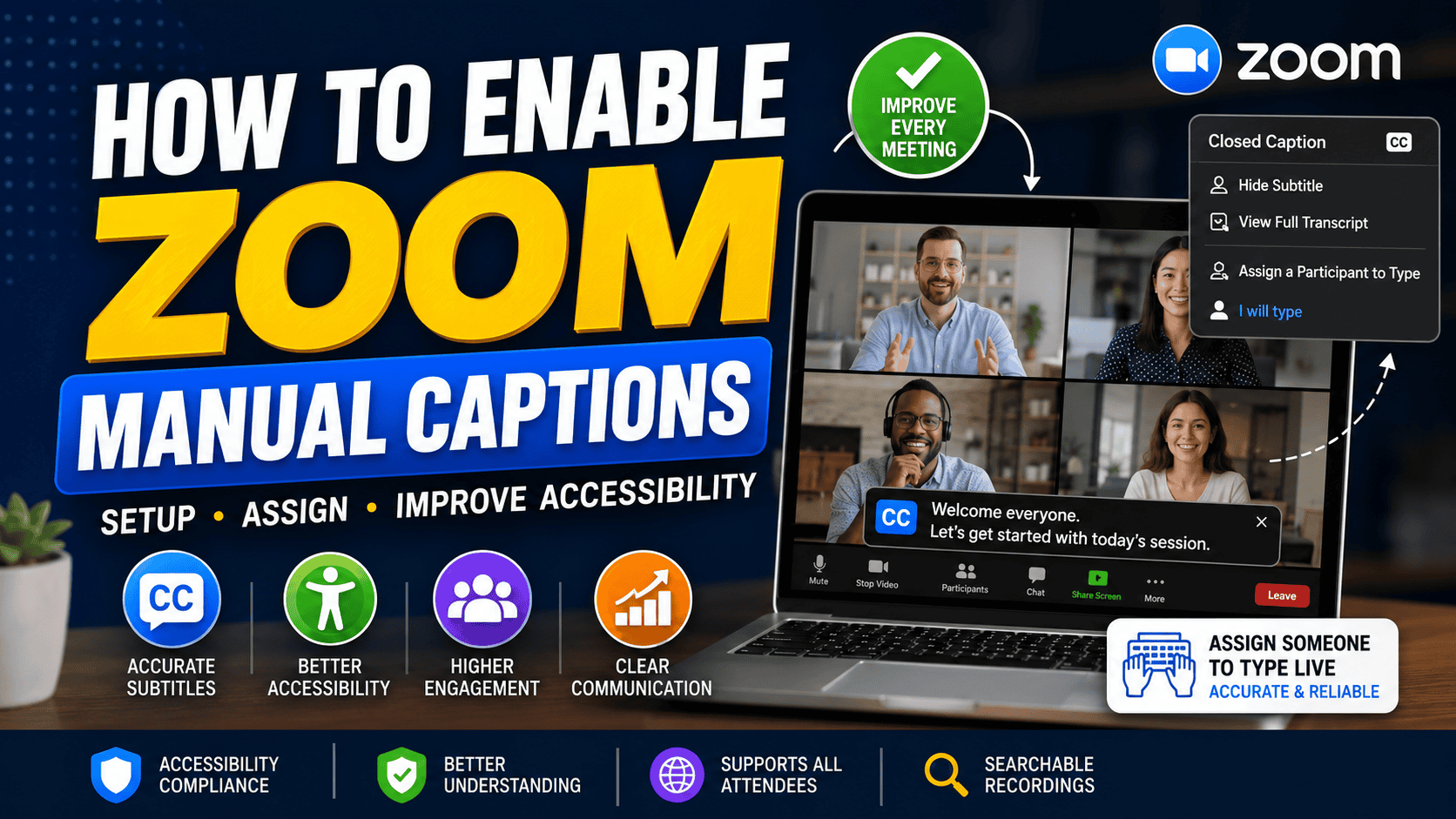
How to Assign Someone to Type Captions
During a Zoom meeting:
- Click Closed Caption
- Select Assign a participant to type
- Choose a participant
- They can immediately begin entering subtitles
This works especially well during:
- Webinars
- Training sessions
- Online courses
- Accessibility events
- Corporate meetings
Using Manual Captions During Webinars Changed the Way I Run Events
I didn’t expect this at all.
Once I started using captions regularly during webinars, attendee engagement noticeably improved.
Could be coincidence.
I honestly doubt it.
Several attendees specifically mentioned subtitles helped them follow technical conversations more easily because English wasn’t their primary language.
That feedback changed how I think about accessibility features completely.
Captions aren’t only for compliance anymore.
They improve communication for almost everybody.
Zoom Manual Captions vs Live Transcription
| Feature | Manual Captions | Live Transcription |
|---|---|---|
| Human Typed | Yes | No |
| Automatic | No | Yes |
| Accuracy | Higher | Moderate |
| Requires Assignment | Yes | No |
| Handles Technical Terms Better | Yes | Often struggles |
| Background Noise Resistance | Better | Poorer |
| Best For | Webinars & training | Casual meetings |
My Honest Experience After Testing Both
Live transcription works well for:
- Quick meetings
- Internal team chats
- Informal conversations
Manual captions work better for:
- Business webinars
- Client presentations
- Technical training
- Educational sessions
- Professional events
The difference becomes obvious once people start speaking quickly or using specialized terminology.
Background noise absolutely destroys automatic captions sometimes.
I tested this during a remote call where somebody’s dog barked nonstop for nearly ten minutes.
The automatic subtitles turned into complete nonsense.
Manual captions handled the same situation far better because the caption writer simply ignored the noise entirely.
How to Use Third-Party Captioning Services
Zoom supports professional caption providers using caption API tokens.
This enables:
- Real-time transcription
- Multi-language subtitles
- Professional caption services
- Enterprise accessibility solutions
These services are commonly used for:
- Government webinars
- Universities
- Public accessibility events
- Corporate conferences
More setup details are available through the Zoom Support Center.
Troubleshooting Zoom Caption Problems
Zoom Captions Missing
Usually caused by:
- Disabled settings
- Admin restrictions
- Outdated Zoom versions
- Permission conflicts
Quick Fix
- Update Zoom
- Sign out and back in
- Recheck advanced settings
- Contact admin
Captions Not Showing During Meetings
Try:
- Rejoining the meeting
- Restarting Zoom
- Enabling subtitles manually
- Checking microphone permissions
Caption Button Missing on Mobile
Older Zoom mobile versions sometimes hide subtitle controls incorrectly.
Fix
- Update Zoom mobile app
- Restart the meeting
- Switch to desktop if necessary
Live Transcript Not Appearing
Usually caused by:
- Live transcription disabled
- Audio permissions blocked
- Host restrictions
Enable:
Settings → Meeting → Automated captions
What I Actually Like About Zoom’s Caption Features
To be fair, Zoom gets several things right.
Captions Are Easy to Read
I tested captions on:
- Desktop
- Mobile
- Zoom Rooms displays
Visibility stayed excellent everywhere.
Participants Need Almost No Technical Knowledge
Once captions are enabled, attendees simply click the subtitle button and everything works.
Captions Improve Recordings Dramatically
This became one of my favorite unexpected benefits.
I review lots of webinar recordings every week, and searchable captions save an absurd amount of time.
Things Zoom Still Needs to Improve
Zoom seriously needs to simplify accessibility settings.
Some controls appear inside the desktop app.
Others only exist in the web portal.
Some depend entirely on account permissions.
That inconsistency becomes frustrating fast when managing multiple client accounts.
I’d also love:
- better live transcription accuracy
- improved technical terminology recognition
- stronger accent detection
- simpler admin controls
Certain accents still completely confuse automatic subtitles.
There’s really no polite way to say it.
Are Zoom Manual Captions Worth Enabling?
Absolutely.
If you host:
- webinars
- remote classes
- client meetings
- team calls
- virtual presentations
captions improve the experience far more than most people expect.
I originally enabled them because one attendee requested accessibility support.
Now I leave them enabled for nearly every meeting I host.
Once you get used to captions being available, going back feels strange.
You immediately notice how much easier conversations become to follow.
That surprised me more than anything.
Frequently Asked Questions
Can participants turn Zoom captions on themselves?
Yes. As long as the host enables captions, participants can usually activate subtitles directly from the meeting toolbar.
Do Zoom captions work on mobile?
Yes. I tested captions on both Android and iPhone during webinars and they displayed properly.
Are manual captions better than Zoom live transcription?
In my experience, yes. Manual captions require slightly more setup, but accuracy is dramatically better during professional meetings and webinars.
Why are Zoom captions grayed out?
Usually because an admin locked the feature at the account or group level.
I run into this constantly when helping businesses configure Zoom accounts.
Can Zoom use third-party caption services?
Yes. Zoom supports caption API integrations for professional subtitle providers.
Do captions help with meeting recordings?
Absolutely. Searchable captions make reviewing webinars much faster and easier.
Read It also:
- Zoom webinar setup guide
- Zoom recording tutorial
- Zoom audio troubleshooting
- Zoom security settings
- Best Zoom settings for remote work


