

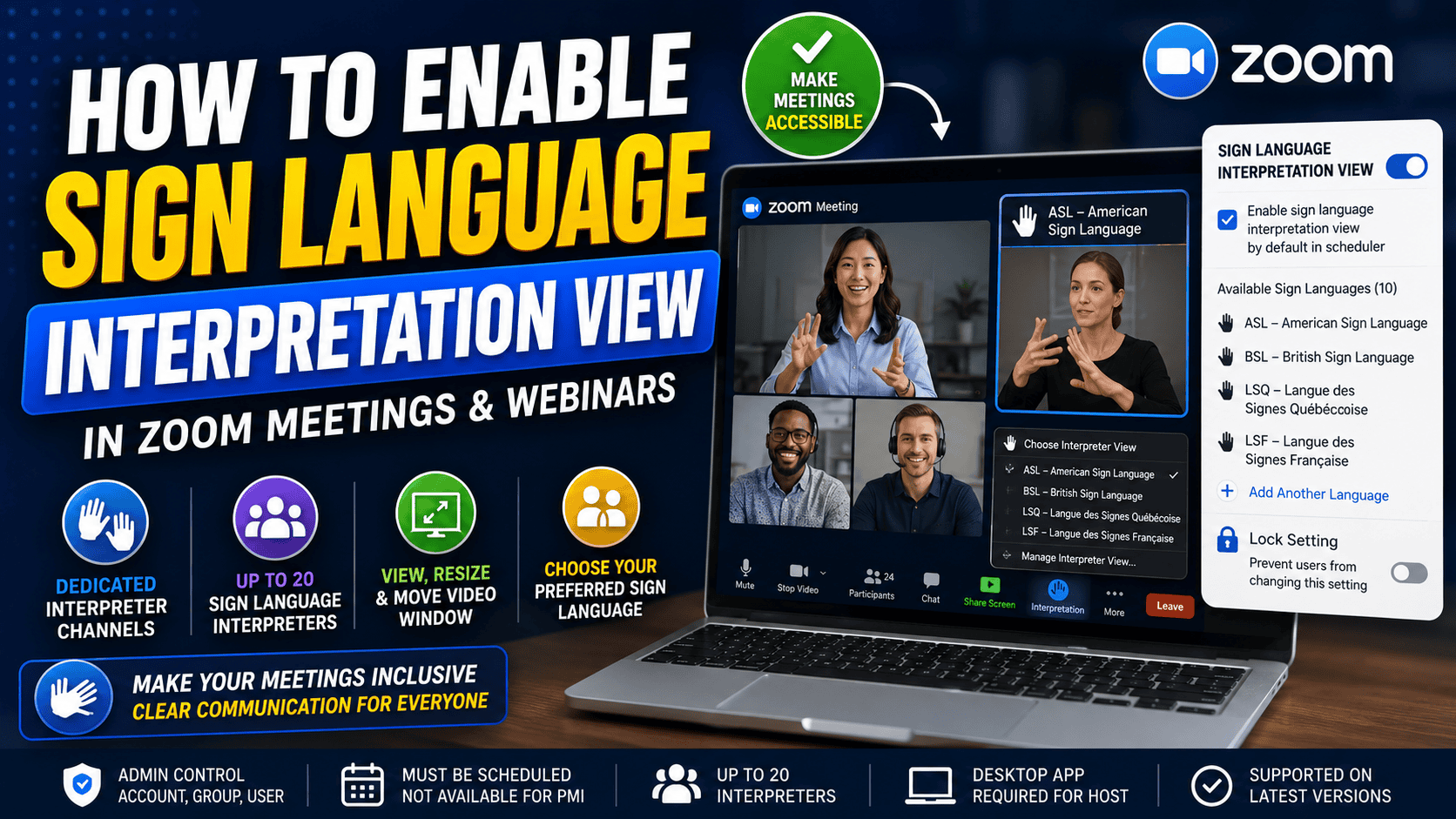
How to Enable Sign Language Interpretation View in Zoom
Making virtual meetings accessible used to feel complicated, especially during large webinars or remote training sessions where participants depended on visual communication support.
I realized how important accessibility tools had become after hosting a webinar where multiple attendees requested sign language interpretation support before the event even started.
At the time, I honestly assumed Zoom only supported captions and live transcription.
I was wrong.
That was the first time I seriously explored Zoom Sign Language Interpretation View, and after testing it during webinars, remote classes, and business meetings, I realized it’s one of Zoom’s most useful accessibility features for inclusive communication.
The feature allows hosts to assign interpreters to dedicated video channels so participants can follow conversations using sign language interpretation throughout meetings and webinars.
Once configured properly, it dramatically improves accessibility for hearing-impaired participants and creates a much more inclusive virtual meeting experience overall.
Contents
- 1 Quick Answer: How to Enable Sign Language Interpretation in Zoom
- 2 What Is Zoom Sign Language Interpretation View?
- 3 Why I Started Paying More Attention to Zoom Accessibility Features
- 4 Benefits of Using Zoom Interpretation View
- 5 Requirements for Zoom Interpretation View
- 6 Limitations of Zoom Sign Language Interpretation
- 7 How to Enable Sign Language Interpretation in Zoom
- 8 How to Schedule Meetings with Interpretation View
- 9 How to Assign Sign Language Interpreters
- 10 How Participants View Interpreter Channels
- 11 Troubleshooting Zoom Interpretation View
- 12 Zoom Accessibility Best Practices
- 13 Pro Tips for Accessible Zoom Meetings
- 14 Are Zoom Interpretation Features Worth Using?
- 15 Frequently Asked Questions
- 15.1 What is Zoom Sign Language Interpretation View?
- 15.2 How do I enable interpretation view in Zoom?
- 15.3 Can Zoom provide interpreters automatically?
- 15.4 How many interpreters can Zoom support?
- 15.5 Can participants choose interpreter channels?
- 15.6 Does Zoom interpretation work on mobile?
- 15.7 Why is interpretation view unavailable in Zoom?
- 15.8 Can webinars use sign language interpretation?
- 16 Read It also
- 17 Official Resources
Quick Answer: How to Enable Sign Language Interpretation in Zoom
To enable Zoom Sign Language Interpretation View:
- Sign in to your Zoom account
- Open Account Settings
- Go to the Meeting tab
- Scroll to In Meeting (Advanced)
- Find Sign Language Interpretation View
- Enable the feature
- Save changes
Once enabled, hosts can assign interpreters during meetings or webinars and participants can choose interpreter video channels directly from meeting controls.
What Is Zoom Sign Language Interpretation View?
Zoom Sign Language Interpretation View is an accessibility-focused feature that allows hosts to assign sign language interpreters to dedicated video channels during meetings and webinars.
These interpreter channels remain pinned and spotlighted separately so participants can easily follow sign language interpretation without constantly adjusting speaker views manually.
Participants can:
- Select interpreter channels
- Resize interpreter windows
- Position interpreter videos on screen
- View multiple interpreters if available
This feature is especially useful for:
- Educational webinars
- Virtual conferences
- Business meetings
- Government accessibility events
- Remote learning environments
- Inclusive workplace communication
Why I Started Paying More Attention to Zoom Accessibility Features
For years, I mostly relied on captions and live transcription during meetings.
They helped, but during larger webinars I noticed captions alone weren’t always enough for every participant.
One attendee emailed me after a remote training session explaining that sign language interpretation would’ve made the webinar much easier to follow.
That message stuck with me.
After testing Zoom interpretation view during several webinars afterward, I realized how much more inclusive meetings became once interpreter channels were available.
Participants didn’t need to constantly pin interpreter videos manually anymore.
Everything felt smoother.
Accessibility became less of an afterthought and more like a normal part of hosting professional virtual events.
Benefits of Using Zoom Interpretation View
Better Accessibility
The biggest advantage is obvious: meetings become far more accessible for hearing-impaired participants.
The feature supports accessibility recommendations from ADA.gov and W3C accessibility standards.
Inclusive Virtual Meetings
Inclusive meetings create better communication for everyone, not just participants who require accessibility support.
Webinars feel more professional when accessibility tools are integrated properly from the beginning.
Improved Webinar Communication
Dedicated interpreter channels reduce confusion during presentations because participants can focus on both the speaker and interpreter simultaneously.
I noticed attendee engagement improved significantly once interpreter views stayed consistently visible throughout webinars.
Requirements for Zoom Interpretation View
Zoom Version Requirements
| Platform | Minimum Version |
|---|---|
| Windows | 5.11.3 |
| macOS | 5.11.3 |
| Android | 5.12.0 |
| iOS | 5.12.0 |
If participants use outdated Zoom versions, interpreter channels may not display correctly.
Host and Admin Permissions
Hosts or Zoom admins must enable the feature before it becomes available during meetings and webinars.
Supported Devices and Platforms
I tested interpretation view on:
- Windows laptops
- MacBooks
- Android phones
- iPhones
- Zoom Rooms displays
The feature worked best on desktop because participants had more flexibility resizing interpreter windows.
Limitations of Zoom Sign Language Interpretation
Zoom’s interpretation feature works well overall, but there are still limitations users should know before hosting accessibility-focused events.
- Not all Zoom versions support interpretation view
- Some meeting types may not support interpreters
- Hosts must assign interpreters manually
- Free Zoom plans may have feature limitations
- Participants using outdated apps may experience display issues
I also noticed some admins struggle finding the settings initially because Zoom hides accessibility controls deep inside advanced meeting settings.
Honestly, Zoom could simplify this entire setup process a lot more.
How to Enable Sign Language Interpretation in Zoom
Enable at Account Level
If you manage an organization or school account:
- Sign in as Zoom admin
- Go to Account Management → Account Settings
- Open the Meeting tab
- Scroll to In Meeting (Advanced)
- Enable Sign Language Interpretation View
- Save changes
This enables interpretation view for all users within the account.
Enable for Groups
To enable interpretation view for specific teams or departments:
- Go to User Management → Groups
- Select the desired group
- Open Meeting Settings
- Enable interpretation view
Enable for Individual Users
Users hosting meetings themselves can also enable interpretation view directly inside personal Zoom settings if admins allow it.
How to Schedule Meetings with Interpretation View
When scheduling a meeting or webinar:
- Create a new Zoom meeting
- Open meeting options
- Enable Sign Language Interpretation
- Add interpreter information
- Assign interpreter languages or channels
I strongly recommend testing everything before live webinars because accessibility issues are much easier to fix before attendees join.
How to Assign Sign Language Interpreters
During a Zoom meeting or webinar:
- Click Interpretation from meeting controls
- Select Add Interpreter
- Choose the participant acting as interpreter
- Assign interpreter channels
Zoom allows hosts to assign multiple interpreters depending on the event setup.
This became especially useful during larger webinars where different interpreters rotated throughout long sessions.
How Participants View Interpreter Channels
Participants can:
- Select interpreter channels manually
- Resize interpreter windows
- Move interpreter videos around the screen
- Choose preferred viewing layouts
One thing I liked immediately was how easy Zoom made this for attendees.
Most participants figured it out without needing technical help.
That matters during large webinars because support requests can become overwhelming quickly.
Troubleshooting Zoom Interpretation View
Feature Not Showing
Common causes include:
- Outdated Zoom versions
- Disabled account settings
- Unsupported meeting types
- Admin restrictions
Quick Fix: Update Zoom and recheck advanced meeting settings.
Settings Locked by Admin
I run into this problem constantly helping organizations configure Zoom accessibility settings.
If interpretation view appears grayed out, an admin probably locked the feature at the account level.
Check:
- User settings
- Group settings
- Account-level permissions
Unsupported Meeting Type
Some instant meetings or older recurring meeting templates may not support interpretation view properly.
Creating a fresh scheduled meeting usually fixes the issue.
Zoom Accessibility Best Practices
After testing accessibility tools across webinars and training sessions, these best practices made the biggest difference:
- Enable accessibility settings before meetings start
- Test interpreter channels in advance
- Use high-quality webcams for interpreters
- Provide captions alongside interpretation when possible
- Explain accessibility controls at the beginning of webinars
- Keep interpreters spotlighted throughout sessions
Small setup improvements make virtual meetings dramatically easier to follow.
Pro Tips for Accessible Zoom Meetings
- Schedule accessibility checks before webinars
- Use stable internet connections for interpreters
- Provide participants with accessibility instructions beforehand
- Combine live captions with interpretation view for maximum accessibility
- Record webinars for later review
One thing I learned quickly: accessibility features work best when planned before meetings instead of added halfway through events.
Are Zoom Interpretation Features Worth Using?
Absolutely.
If you host webinars, online classes, remote meetings, or accessibility-focused virtual events regularly, Zoom’s interpretation tools improve communication more than most people realize.
I originally explored the feature because attendees requested accessibility support.
Now I consider interpretation view part of standard webinar setup whenever accessibility matters.
Once meetings become more inclusive, going back feels outdated pretty quickly.
Frequently Asked Questions
What is Zoom Sign Language Interpretation View?
It’s a Zoom accessibility feature that allows hosts to assign interpreters to dedicated video channels during meetings and webinars.
How do I enable interpretation view in Zoom?
Go to Zoom account settings, open the Meeting tab, find interpretation view inside advanced settings, and enable the feature.
Can Zoom provide interpreters automatically?
No. Hosts must assign interpreters manually.
How many interpreters can Zoom support?
Zoom supports multiple interpreters depending on meeting setup and webinar configuration.
Can participants choose interpreter channels?
Yes. Participants can select and customize interpreter views during meetings.
Does Zoom interpretation work on mobile?
Yes, although desktop provides better viewing controls and resizing options.
Usually because of outdated app versions, admin restrictions, or unsupported meeting settings.
Can webinars use sign language interpretation?
Absolutely. The feature works especially well during webinars and accessibility-focused events.
Read It also
- Zoom Accessibility Features Guide
- Zoom Webinar Setup Tutorial
- Zoom Live Transcription Guide
- Best Zoom Settings for Remote Teams
- Zoom Troubleshooting Guide
- Zoom Meeting Controls Explained
